Workstation Activity Report

July 24, 2026
It's important to understand everything that's happening with your POS workstations. This article will show you how to use the Workstation Activity Report to stay on top of the work each of your Cashiers is doing in each of your register Workstations. Take a look at what's here for you!
Using the Workstation Activity Report
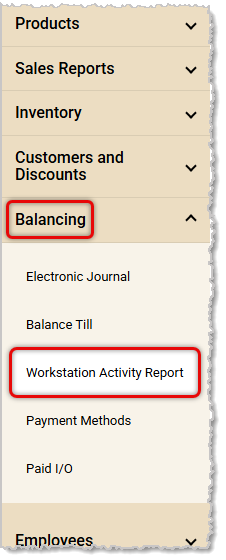
To get to this area, in the main system menu on the left click on Balancing, and in the menu that opens, click on Workstation Activity Report.
Here are the major functions of the Workstation Activity Report page:
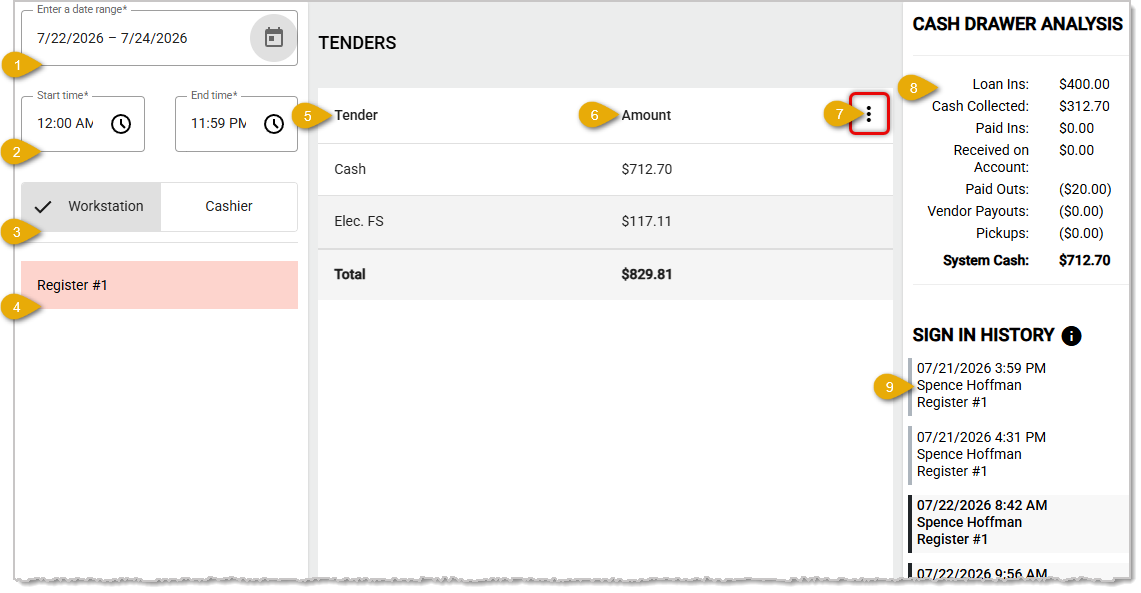
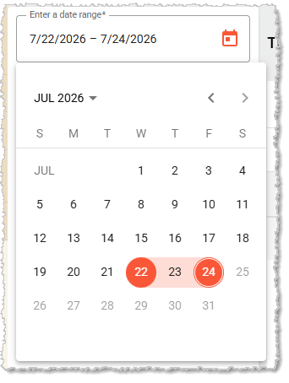
- Date Range — By default the date range will cover the current day, but you can click the Date Range area and use the Date Picker to select any date range you like. The range is limited to up to three days.
- Hours — By default the Start Time and End Time fields are set to cover a full 24-hours, but if you need to adjust the Hours you can do so.
- View — The report defaults to the Workstation view, where you'll see a list of all active registers on the left, and in the report you'll see details about the selected register. You can change to the Cashier view to see a list of all of your Cashiers for the store, and the report will show the details of their work for the chosen date range.
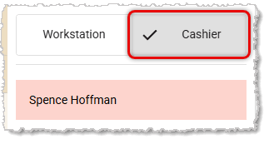
- View Items — Whether you're in the Workstation view or the Cashier view, you'll see a list of items here. You can click on a workstation name when in that view to see details about activity. In the same way, you can click on a Cashier name when in that view see that individual's work for the date range you selected.
- Tenders — In this column you'll see all Tender Types used for the selected Workstation or Cashier during the selected date range.
- Amount — In this column you'll see the amounts for each Tender Type as well as a Total of all funds collected for the Workstation or Cashier during your selected date range.
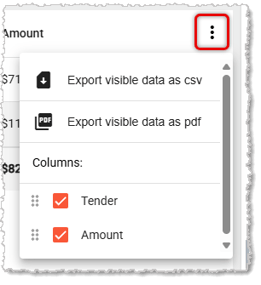
- Action Menu — You can click the Three-Dot Stack button to open the Action menu. You have the option of Exporting the data on the page as a CSV spreadsheet file or as a PDF file. You can also hide or show the columns you prefer. By default both the Tender and the Amount columns display.
- Cash Drawer Analysis — This area outlines activity in dollar amounts you had in the Cash Drawer during your selected date range. Activity areas include amounts for Loan Ins, Cash Collected, Paid Ins, Received On Account, Paid Outs, Vendor Payouts, Pickups, and the total System Cash amount for the date range.
- Sign In History — This area displays all Front End sign-ins for the date range you selected. In the Workstation view, you'll see all Cashier sign-ins, and in the Cashier view, you'll see all sign-ins for the selected Cashier. The sign-ins in bold are the ones that are within your selected date range, and the ones not in bold are for the twelve hours before and after your date range.
Related Topics
Manager Functions in the Front End
Balance Till
Print Till Status Report
Frequently Asked Questions
Q: I have a question, but I can't find my answer here. How do I get more assistance?
A: If you need immediate assistance, the MarktPOS team is available 24/7. Feel free to contact our support team at: 877-752-0625. You can also email us at support@marktpos.com and we will respond within 24-hours.
Whenever you come to the end of a shift, there are several things you need to do, even if you don't
From time to time you may need to look up a transaction receipt and either reprint or send to the cu
It's a good practice to double-check cashier drawer counts of cash after a shift is complete, and th







.svg)
Is this page helpful?
×Help us improve our articles